|
Navigation: Reference Manual > The PRISM Modules > Concessions > Concession Spend > Adding Prime Concessionaire Spend |
Send comments on this topic.
|
|
Navigation: Reference Manual > The PRISM Modules > Concessions > Concession Spend > Adding Prime Concessionaire Spend |
Send comments on this topic.
|
Adding prime concession spend consists of several steps. PRISM will guide you step by step through the process. The process begins with adding the Report and Preparer information. The next step is to enter their revenues for the reporting period. Finally, the purchase information is entered and your entry is confirmed. This information can also be entered by the prime from the user interface.
Adding Prime Concessionaire Spend
1.Navigate to the Revenue Tab of an individual concessions agreement.
2.Above the spend grid, click the "Add Prime Revenue" button.
3.From the add wizard, complete the four sections:
.gif) Report/Preparer Information
Report/Preparer Information
Report Totals
ACDBE Revenues
ACDBE Purchases
4.Review your entry and confirm.
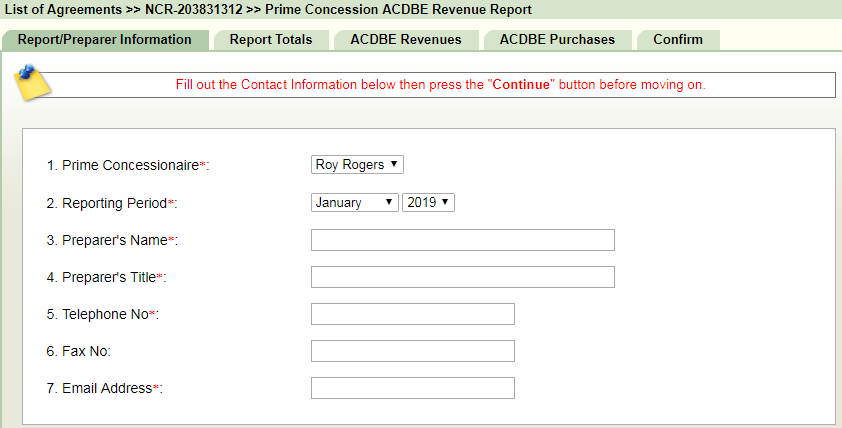
Note: The "Prime Concessionaire" drop-down list is populated by the prime concessionaire(s) that you have assigned to the agreement.
"Report/Preparer Information" Screen
Reporting the Totals
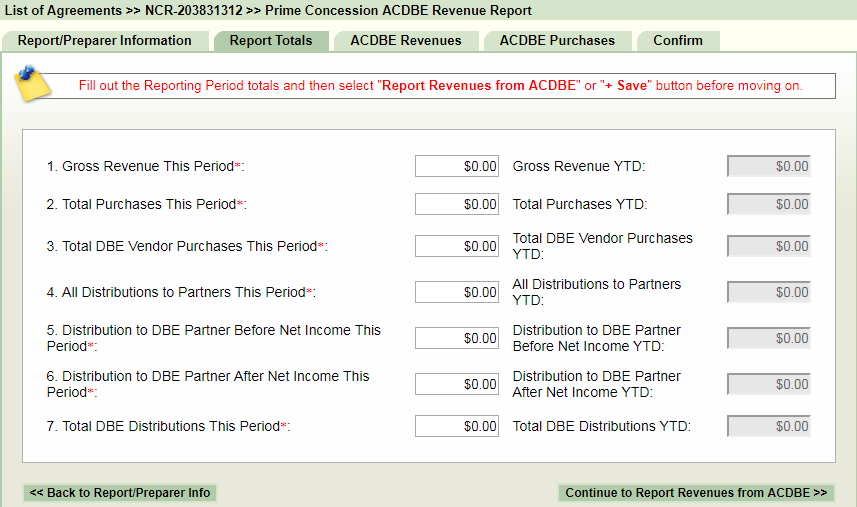
1.Enter the relevant ACDBE revenue, purchase, and distribution information for this period.
2.Click the "Continue to Report Revenues from ACDBE" button.
Reporting ACDBE Revenue
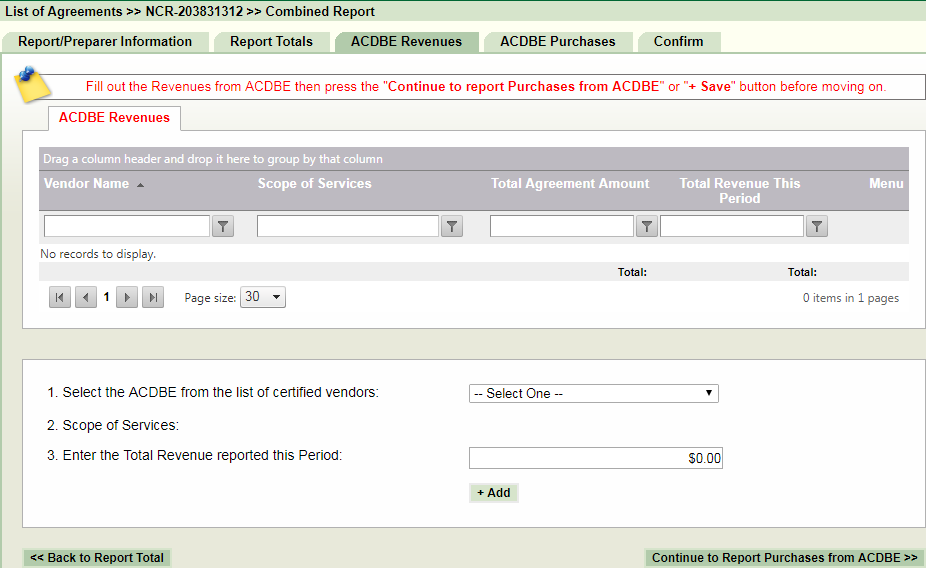
1.Select the ACDBE from the drop-down list.
2.Enter the revenue reported for this period for each ACDBE that you report on.
Reporting ACDBE Purchases
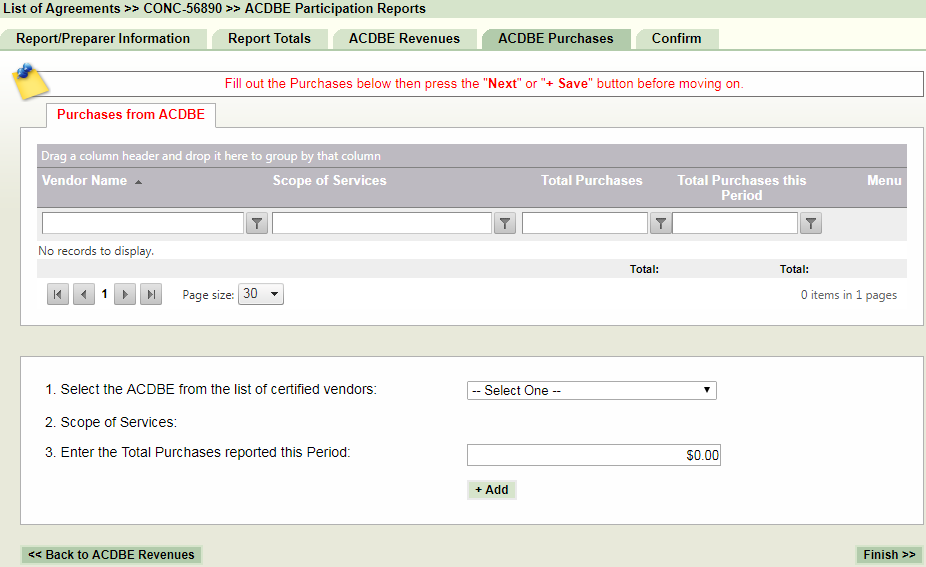
1.Select the ACDBE from the drop-down list.
2.Enter the Total purchases reported for this period for each ACDBE that you report on.
|
PRISM Compliance Management - Copyright © 2026 Early Morning Software, Inc. |


